> ## Documentation Index
> Fetch the complete documentation index at: https://docs.colossal.sh/llms.txt
> Use this file to discover all available pages before exploring further.

# Create an automation

> Learn how to create your first automation with Colossal.

With Colossal, you can create very powerful [Commerce Automations](/automations/overview).
In this example, we will show how you can create a simple, yet powerful, automation that will **enhance descriptions of your products**.

## Open your project

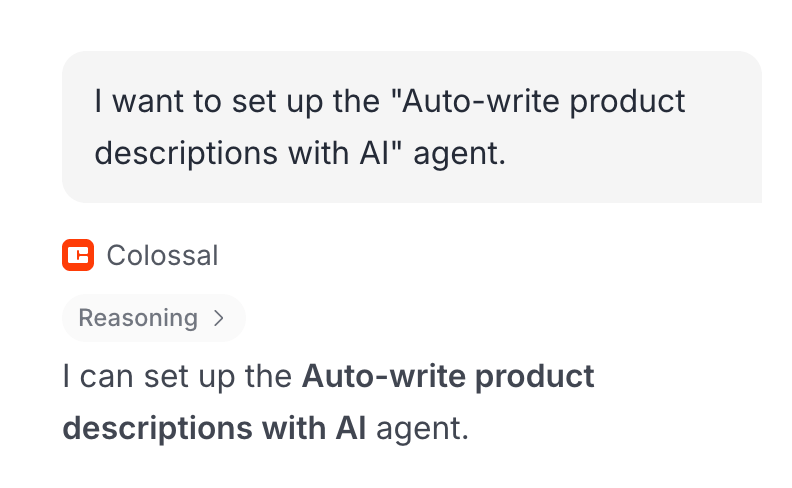
Open your project in [Colossal](https://app.colossal.sh) and describe what you want in the chat:

<Frame>
  <div className="p-6 max-h-[300px] flex justify-center">
    <img src="https://mintcdn.com/colossal/ML9BL2zRxm7DilUe/images/create-automation-chat.png?fit=max&auto=format&n=ML9BL2zRxm7DilUe&q=85&s=edb332b37c81a3d9f3865192fd2a1be5" className="w-fit h-full rounded-xl" width="792" height="488" data-path="images/create-automation-chat.png" />
  </div>
</Frame>

Some examples of automations you can create:

<Prompt description="Award AI-decided loyalty points in Smile.io on order completion" actions={["copy"]}>
  When an order is completed, award loyalty points in Smile.io based on the order total — with AI deciding bonus points for customers close to their next tier.
</Prompt>

<Prompt description="Draft a follow-up and open a support ticket on refund" actions={["copy"]}>
  When an order is refunded, AI drafts a follow-up message and creates a support ticket so your team can find out what went wrong.
</Prompt>

<Prompt description="Log completed orders to Airtable" actions={["copy"]}>
  When an order is completed, add a row to Airtable with the customer name, email, order total, and product details.
</Prompt>

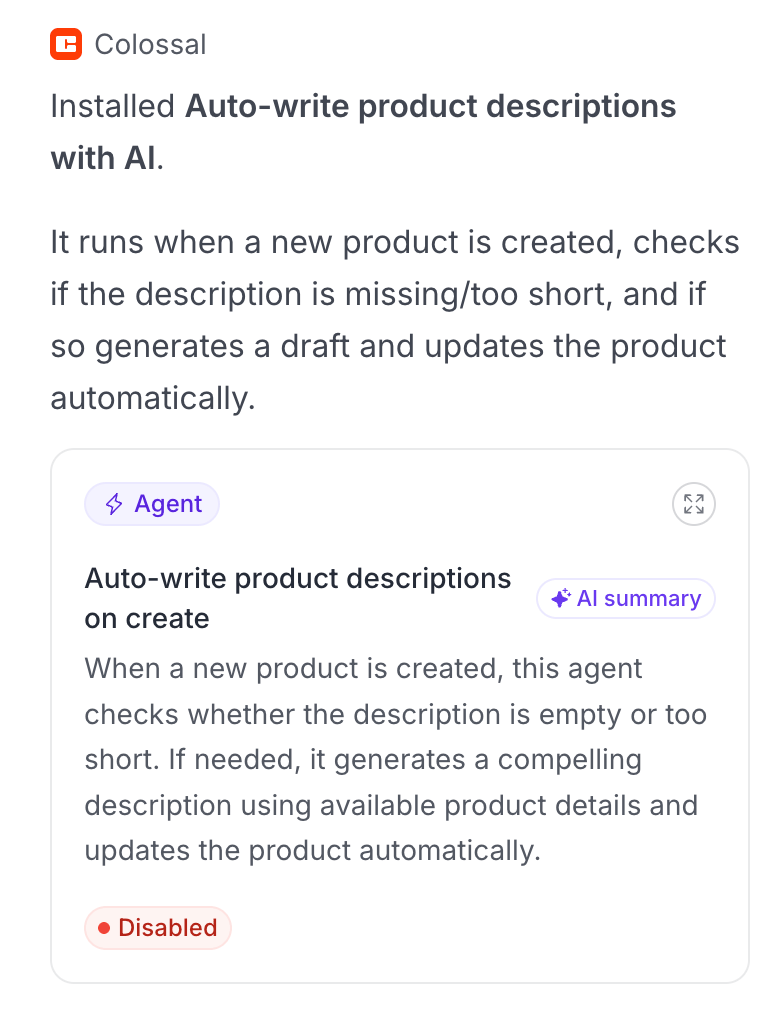
In a few seconds you should get a confirmation that the automation was created, along with the automation card:

<Frame>
  <div className="max-h-[400px] flex justify-center">
    <img src="https://mintcdn.com/colossal/ML9BL2zRxm7DilUe/images/create-automation-cofirmation.png?fit=max&auto=format&n=ML9BL2zRxm7DilUe&q=85&s=5488d5355ca5a4c703afd26ae8115142" className="w-fit h-full rounded-xl" width="778" height="1026" data-path="images/create-automation-cofirmation.png" />
  </div>
</Frame>

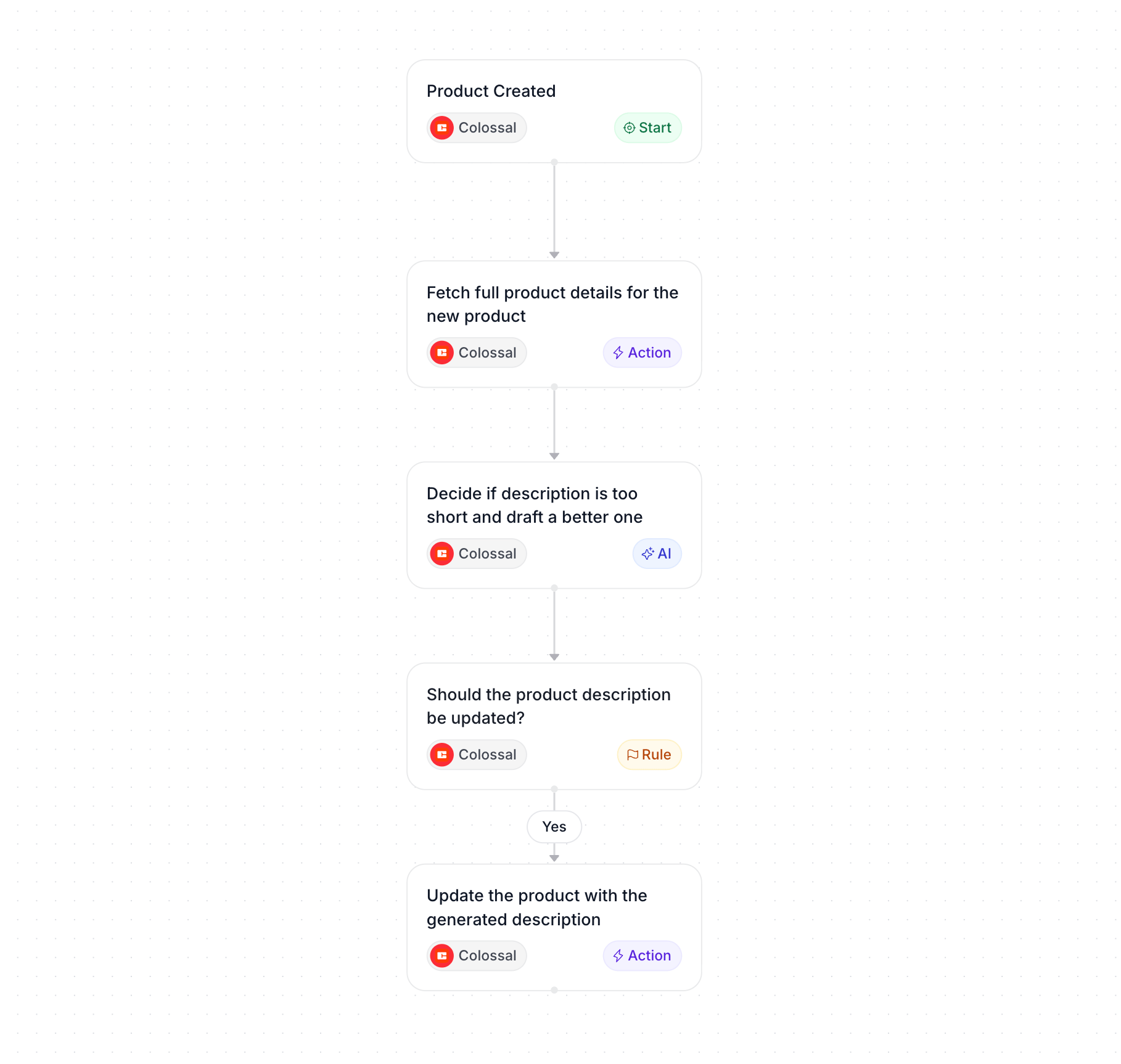
If you click on the automation card, you will see your automation:

<Frame>
  <div className="max-h-[500px] flex justify-center">
    <img src="https://mintcdn.com/colossal/ML9BL2zRxm7DilUe/images/create-automation-preview.png?fit=max&auto=format&n=ML9BL2zRxm7DilUe&q=85&s=2ee4c19bdd0e77ce01f4b9c55b6bd74e" className="w-fit h-full rounded-xl" width="1818" height="1726" data-path="images/create-automation-preview.png" />
  </div>
</Frame>

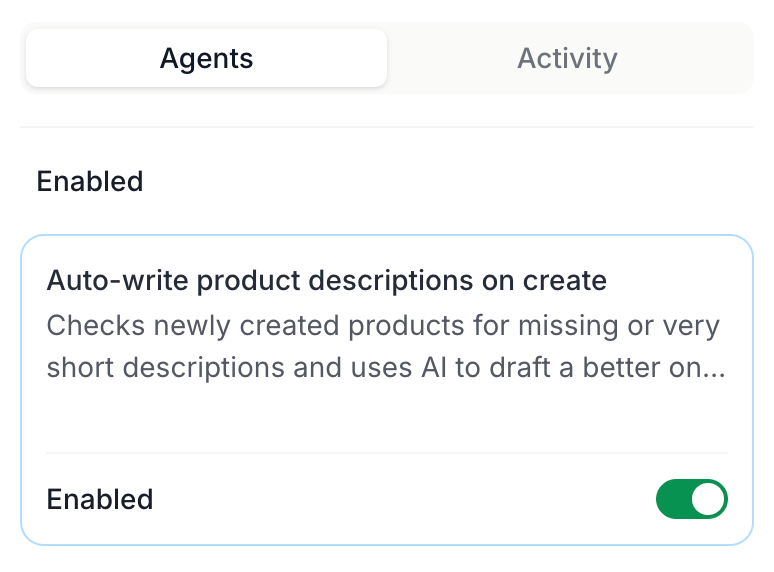
Now you can enable it in the **Automations** tab, and after you add some products you can switch to the **Activity** tab to see the automation's execution history.

<Frame>
  <div className="p-6 max-h-[300px] flex justify-center">
    <img src="https://mintcdn.com/colossal/ML9BL2zRxm7DilUe/images/create-automation-tab.png?fit=max&auto=format&n=ML9BL2zRxm7DilUe&q=85&s=441bb1dbb6f69d9f28b2c51be79bf6b2" className="w-fit h-full rounded-xl" width="774" height="572" data-path="images/create-automation-tab.png" />
  </div>
</Frame>

## Update your automation

Edit existing automations the same way you created them -- describe the change in chat. Each run is durable: if a step fails, the engine retries automatically.

## Next steps

<CardGroup cols={2}>
  <Card title="Automation Builder" icon="robot" href="/automations/overview">
    Events, step types, and execution model.
  </Card>

  <Card title="Connections" icon="puzzle-piece" href="/automations/connections">
    Browse the apps that provide events and actions.
  </Card>

  <Card title="Events" icon="bolt" href="/apps/colossal-app/events">
    Full event list and payload schemas.
  </Card>

  <Card title="Create a storefront" icon="store" href="/quickstart/create-a-storefront">
    Scaffold a storefront and connect it to your project.
  </Card>
</CardGroup>